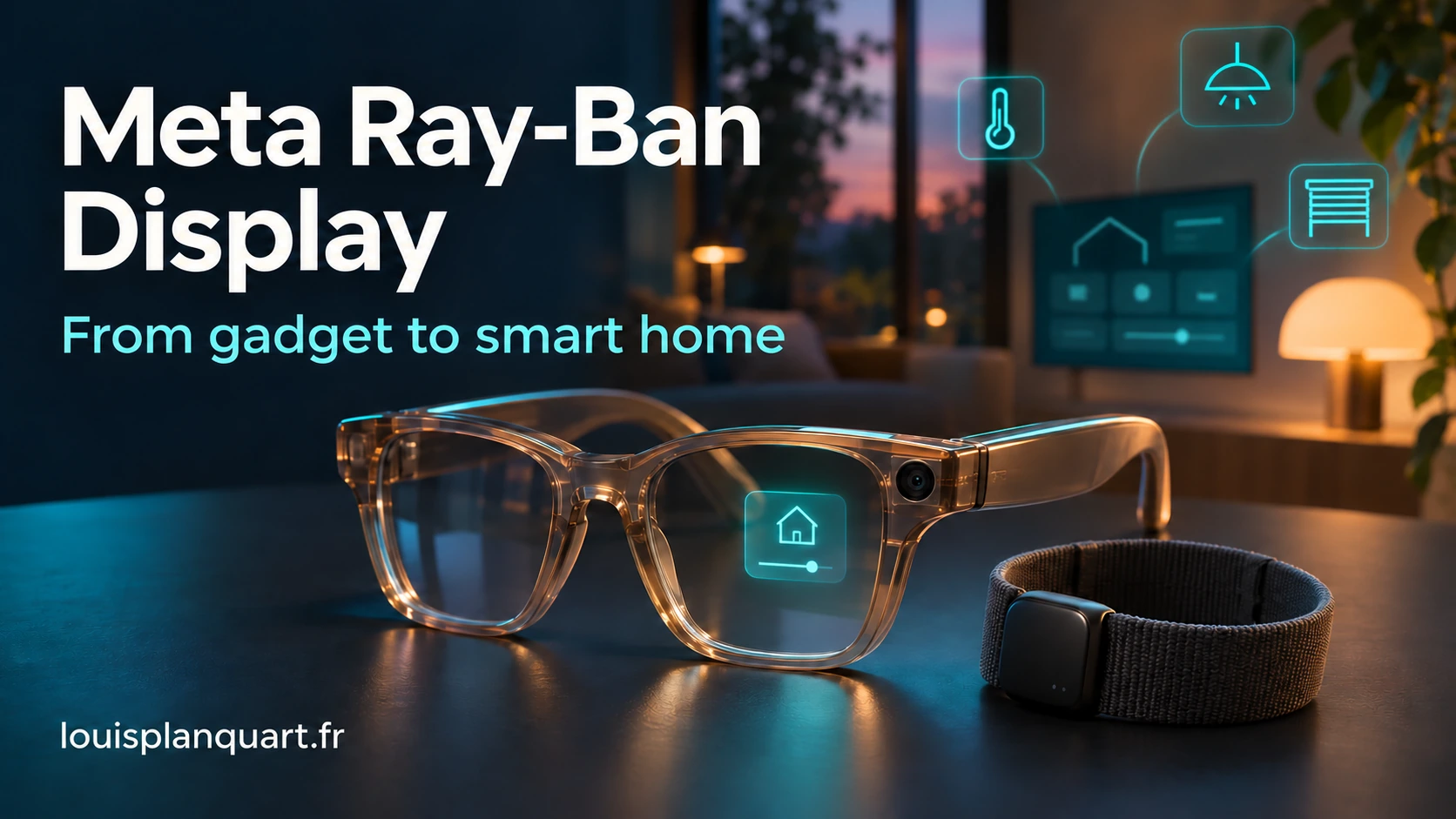
If you’ve been reading this blog for a while, you’ve probably figured out one thing: I’m a geek. And however many years go by, a new piece of technology still brings out the kid in me. Meta Ray-Ban Display glasses certainly haven’t helped. 😄
Last year, when Mark Zuckerberg unveiled them at Meta Connect, I was practically bouncing in front of my screen. A pair of glasses, AI, a display in front of my eyes and a wristband to control it all: I wanted just one thing—to get my hands on a pair. I’d wanted something like this back in the Google Glass days. Unfortunately, my eyes decided long ago that they needed a prescription, particularly for my astigmatism. Importing a pair that couldn’t be fitted to my eyesight wouldn’t have solved the problem.
Products like this take us straight back to science-fiction films. Or perhaps they were simply a glimpse of what was coming? An interface in front of your eyes, an assistant you can talk to, controls operated with your fingers… The little bit of Iron Man living in my head is getting seriously excited. I already thought being able to use the Meta Quest interface with my hands was pretty amazing. Getting some of that feeling in a pair of glasses, without a headset strapped to my face, takes it to another level.
So I waited. Then I finally managed to order mine. Between the excitement about the hardware, the limitations of the software and the things I’ve started building for them, I now have a few stories to tell.
01 Buying a prescription pair: the first adventure
Before we get into smart homes and apps, you first have to get the glasses onto your nose. And if, like me, you need prescription lenses, things become a little more complicated.
When I was looking into placing an order, the two options I’d identified were the Ray-Ban store on Rue de Rivoli in Paris and Optical Center on the Champs-Élysées. For my friends elsewhere in France, that wasn’t exactly the most convenient buying experience. I’m describing my experience at the time I ordered: the available retailers and prescription services may change.
I ordered my pair on October 16, 2026, during the week of the French launch, which had officially been announced for October 13. I then had to wait around four weeks for them to arrive. When you’ve already been waiting a year for a product, I can assure you those final weeks feel rather long. [1]
Part of the difficulty comes from the lens that incorporates the display. On this model, the prescription has to be built in during manufacturing: you can’t simply buy a standard frame and ask your optician to replace the lenses as you would with ordinary glasses. Meta specifies a supported total prescription range of −4 to +4 diopters, with single-vision lenses. Progressive lenses aren’t supported. For astigmatism, compatibility needs to be checked against the complete prescription, rather than a single number in isolation. [2]
I also came across online services offering additional prescription lenses that attach in front of the glasses’ own lenses. I haven’t tested that approach on the Display model. I’d previously ordered prescription inserts for the Meta Quest 3 without any problems, but that doesn’t guarantee an equally good result here. For my pair, I preferred to go through a store.
As for the price, my bill was straightforward: €899 for the glasses and wristband package, plus €225 for prescription lenses, bringing the total to €1,124. That €225 was the price for my purchase, not a universal rate for every prescription. The lenses are Transitions: they darken in sunlight and become clear again as conditions change. In my experience, this works quite well. They return to clear fairly quickly, although it isn’t instantaneous.
02 All of that in 69 grams on your nose
Back to the product itself. You get a pair of glasses with a screen in the right lens, plus a wristband to interact with the interface. To give you an idea of how large the display looks, take your phone and hold it in front of you with your arm partly extended: that’s roughly how it feels to me. Obviously, a screen doesn’t fill your entire field of view.
On paper, a resolution of 600 × 600 pixels doesn’t sound particularly exciting compared with our smartphones. In practice, I can read the text without any trouble, and videos look perfectly good for this format. I’m not going to open fifteen windows or work on a massive Excel spreadsheet in there. For reading a piece of information, navigating a properly designed interface or quickly checking something, it’s more than enough for me.
For those who like looking under the hood, here are the specifications published by the manufacturers. [3]
| Component | Specification |
|---|---|
| Processor | Qualcomm Snapdragon AR1 Gen 1 |
| RAM | 2 GB LPDDR4x |
| Storage | 32 GB |
| Display | Right lens, 600 × 600 pixels, 20° field of view |
| Brightness | 30 to 5,000 nits |
| Refresh rate | Display up to 90 Hz; content at 30 Hz |
| Photos and video | 12 MP sensor; 3,024 × 4,032 photos; 1,440 × 1,920 video at 30 fps |
| Audio | Six microphones and two open-ear speakers |
| Connectivity | Wi-Fi 6 and Bluetooth 5.3 |
| Weight | 69 g in Standard size; 70 g in Large |
| Claimed glasses battery life | Up to 6 hours of mixed use; another 24 hours with the case |
| Neural Band | 42 g; up to 18 hours of battery life |
| Water resistance | IPX4 for the glasses; IPX7 for the wristband |
Those battery-life figures are Meta’s claims. In practice, it obviously depends on what you ask the glasses to do. As for the RAM and processor, they help put the product in perspective: this is a compact device designed for brief interactions and tailored interfaces. You haven’t suddenly strapped a desktop PC to your face.
The glasses come in two sizes and two colors: Black and Sand. Visually, I find the difference between the sizes fairly subtle, although getting the right fit obviously matters. I chose the slightly translucent Sand version, which lets you glimpse some of the components inside. I already own a pair of shiny black Ray-Ban Meta Wayfarers without a display, and they pick up fingerprints just from being looked at. So I fancied a change. 😅
A camera, six microphones, two speakers, electronics and a display inside a frame weighing around 70 grams… Seriously, what a time to be alive. The geek in me still struggles to think of that as ordinary.
03 The Neural Band: my fingers become the remote control
The wristband is probably one of the most interesting parts of the product. If you’ve used hand tracking on a Meta Quest, some of the gestures will feel familiar. But the underlying technology is different.
The Meta Neural Band uses surface electromyography, or EMG. Behind that rather medical-sounding name is a fairly simple principle: sensors in contact with your wrist detect electrical signals associated with muscle activity, and the system translates them into commands. It doesn’t read your thoughts. Crucially, unlike camera-based tracking, it doesn’t need to see your hand in front of your face to interpret the gestures. [4]
In practice, I slide my thumb along my index finger to navigate, pinch my thumb and index finger together to select, and use my thumb and middle finger to go back. To adjust the volume, I hold the pinch and rotate my wrist as if I were turning a knob. It’s the kind of gesture that sounds strange when someone describes it, then feels completely obvious once you try it. [5]
Within five minutes, I’d picked up the essentials. It didn’t feel like learning a new way to control a machine. Where you position the band really does matter, though. If it’s poorly placed or adjusted, it detects gestures less reliably, and you soon start thinking the thing has a mind of its own. After a few days, I’d worked out how to wear it so that everything felt natural.
Another feature looks particularly promising to me: Neural Handwriting, which lets you write with your finger. The idea is to trace letters on a surface, such as a table, to compose a reply without a keyboard or speaking out loud. Initially launched in early access, the feature was the subject of a wider rollout announcement from Meta in March 2026. Availability still needs to be checked for your language and setup. [6]
I think the idea is pretty wild. Quietly replying to a message by moving a finger across a table, while the text appears in your glasses… We’ve certainly come a fair way since T9 keypads.
04 Welcome to Cyberpunk… and the kingdom of chargers
Of course, there comes a point when you have to take a look at yourself from the outside. Smartphone in my pocket, Apple Watch on my left wrist, Neural Band on the right and connected glasses on my nose: I’m gradually starting to look like a Cyberpunk character. All I need now is an elbow upgrade. 🤖
And when it comes to cables, my bedside table increasingly resembles my desk. The glasses charge inside their case, which is itself powered over USB-C. The Neural Band needs its own dedicated charger as well. One more accessory to remember when packing, otherwise you head off for the weekend with a very high-tech bracelet that eventually becomes rather useless.
A smartphone also remains essential if you want to use the full set of features. The glasses retain some functions without a connection to the Meta AI app, including taking photos and recording video, but they don’t replace a standalone phone. In my own setup, I also have to make sure Meta AI is running and remains available in the background on my phone. [5]
The hardware feels like the future. Managing batteries and background apps gently reminds us that we’re still living in the present.
05 The built-in apps: this is where I was a little disappointed
When I started exploring the apps, I naturally found Meta’s ecosystem: Instagram, WhatsApp, Messenger and Threads. Alongside that are calls, the camera, photos, music through services such as Spotify or Apple Music, maps, a teleprompter, captions and translation. There are also a few games, including Hypertrail, GOAT and 2048, as well as weather and birthday widgets, and the tutorial. [7]
Captions and translation are two different features, incidentally. In my setup, ordinary live captions were offered in English. For translation on the Display glasses, the official documentation lists English, French, Italian and Spanish. Being able to read a conversation’s translation directly in your glasses is certainly an appealing use case. [8]
But once the initial “wow” had worn off, I started looking for things I could actually do with them during the day. And that’s where I found the offering too limited. With text messages, for instance, I could reply to a notification, but I didn’t get the full experience and conversation history I was expecting. The same went for email: receiving a piece of information is one thing; having a tool you can really use is another.
The native features didn’t meet my needs for my work Outlook calendar either. Meta does offer calendar features for Google Calendar and Outlook, and some of the announced additions are aimed at English-speaking users in the United States. But a feature appearing in an announcement doesn’t mean I get that exact experience with my French setup and work account. [9]
I had the same frustration with the selection of apps. Meta is starting to make more experiences discoverable through Explore, but it’s still a long way from what I expect of a proper app ecosystem. My first reaction was more along the lines of: “Is that it?” [1]
At first glance, for what I wanted to do with them, it was a bit crap. There, I said it. I’m not an influencer, and I didn’t buy these glasses to film myself at Chanel. I want them to be useful, to give me access to my information and to let me build things for them.
Fortunately, this is precisely where the story gets much more interesting.
06 Web apps: the moment these glasses become mine
The real game changer for me is being able to add web apps. A web application built with familiar technologies, but with an interface designed for the glasses. I can create my own tool and use it on the product I’ve just bought. That sentence alone puts me in a better mood.
The principle is fairly accessible: build your app, host it at a URL, then add it through Meta AI with developer mode enabled. For this personal experiment, there’s no need to start by getting your app published in a store. Meta provides documentation, tools and even a simulator to help prepare your interfaces. [10]
And they didn’t stop there: there’s an official Meta MCP server that gives coding assistants access to the web app documentation. If you haven’t followed all my previous tinkering, this lets my mate Codex look up the right information while it develops: display constraints, available interactions and interface recommendations. This MCP provides development documentation; it doesn’t magically connect the glasses to everything in the house. [10]
So I didn’t have to begin by spending hours explaining to the AI what this display was, or how to avoid churning out a website designed for a 32-inch monitor. With the right tools, Codex could draw on Meta’s guidance to produce something suitable. It sometimes needs correcting once or twice, but overall, it let me move very quickly.
For this app, I used 6.1 Terra in Codex. The result was already more than good enough to give me clean, usable interfaces. Not an effects-heavy demo: something I can actually read and operate while wearing the glasses.
For now, I’ve built one main app that acts as my little control center. It brings together Home Assistant for my smart home, my work Outlook calendar, notes from my Mac through a synchronization automation, an RSS news feed and my blog statistics. Incidentally, more and more of you are coming here to read about my adventures, and that really makes me happy. Thank you. 🙂
See the difference? One custom app, and I’m finally starting to use these glasses for my own needs. That’s exactly what I wanted to do with this product.
I’ve also found unofficial directories linking to all sorts of web apps: weather, brick-breaker games, YouTube, TikTok… and DOOM, of course. These are unofficial directories, so use them at your own risk. But failing to get DOOM running on a new screen would have been professional negligence. Right, Antoine? 😄
07 Home Assistant: the right information in the right room
Back to Home Assistant, because this is probably my favorite use for the glasses so far. If you’ve read my other articles, you’ll know that much of my home is automated. Among other things, I’ve installed Sonoff NSPanel switches in the different rooms, running custom firmware and integrated with Home Assistant.
In my setup, I also use Bluetooth and the Apple Watch I wear almost constantly to work out which room I’m in. All of that takes work on the home-automation side: it isn’t something the glasses discover by themselves when you take them out of the box.
And this is where my genius comes into play. Well, my little stroke of DIY genius—let’s stay modest. 😎
A display this size can’t show every piece of information about the house at once. And to be honest, that wouldn’t be particularly useful anyway. But when I enter a room, I can immediately see what matters in that space: the temperature, electricity consumption and the devices I can control, such as the roller shutters or heat pump.
Home Assistant provides the context, my app chooses what information to present, and the glasses display it. I walk around the house, move into another room, and the interface updates automatically. I can then use the wristband gestures to operate the controls I’ve made available.
I can assure you, it’s seriously cool. I already had all those readings and could already check them on my phone. But having them in front of my eyes in the right place, without hunting down the right dashboard, completely changes the experience.
The small screen even forced me to do something rather sensible: decide what actually deserves to be displayed. The temperature of the room I’m in, yes. Forty graphs, eight menus and every sensor in the house, rather less so. Apparently, I had to put a screen on my nose to learn how to put less on a screen.
08 What if this geek’s toy could go to work?
Now let’s do a little thought experiment. Take a maintenance technician who has to work through a series of service calls, check instructions and write up reports. Imagine a business app designed around these glasses.
Before arriving, the technician sees the next job. As they approach the building, the interface brings up useful information: the building caretaker’s name and phone number, the entry code and the exact location of the equipment that needs attention. Once on site, a gesture confirms the start of the job and opens the notes left by the account manager.
While working, they can take photos of what they see and dictate observations. At the end, an AI prepares a report from those details, which they review and approve before sending it to the right person. They haven’t had to pull out their phone at every step, or try to remember three hours later what they should have written down on site.
Turning that idea into a proper professional tool would, of course, require connecting the app to the company’s software, managing access rights and carefully designing the service workflow. But the building blocks that interest me are there: a display you can check at a glance, a camera, microphones and a discreet way to navigate.
Looking at what I’ve managed to do at home with Home Assistant, I think this deserves serious attention. Sometimes, simply showing the right information at the right moment makes a device much more useful. And for a developer or systems integrator, that kind of playground is particularly tempting.
09 My “violon d’Ingres” has found something else to keep me busy
As you’ve probably gathered, I’m still just as enthusiastic. The built-in apps weren’t enough for me, the prescription-lens constraints are real, and I would happily have done without another charger. But it’s been a long time since a piece of hardware made me this keen to explore, try things, make changes and start again.
I waited for these glasses a little like I waited for my first iPhone. I think we’ve seen enormous changes in software over the last few years, especially with AI, but far fewer moments when a new device feels like a real break from what came before. The iPhone evolves, the Apple Watch evolves, PCs evolve… but in everyday use, I often feel like I’m getting much the same thing from one generation to the next.
All right, modern ARM processors are pretty awesome. I’ll give you that. But I still haven’t got my futuristic 8K 3D TV, so let me grumble a little.
With these glasses, I finally have a new toy that will probably eat up even more of my time and connect me a little more closely to the machine. Some people will find that sad. I find it fun: it gives me ideas and makes me want to build new things. Everyone has their own “violon d’Ingres.”
If you haven’t come across that French expression, a violon d’Ingres—literally, “Ingres’s violin”—is a passion you pursue outside your main occupation. It refers to the painter Jean-Auguste-Dominique Ingres, who also played the violin. There you go: you came here for an article about smart glasses, and you’re leaving with a little extra French vocabulary. That one’s on the house. [11]
For me, the line between work and passion is sometimes a little blurry. My “violin” is technology in general, and everything I can build and tinker with. So thanks, Zuck, for releasing products that can wake up the geeky kid I’ve never quite stopped being. Now, if you could keep adding features and give us even more room to create our own apps, I have a couple of ideas up my sleeve. 😁
Sources and notes
The hands-on impressions, lens price, buying process and development projects described in this article reflect my own experience. Specifications and announcements were checked against the sources below. Available features may change depending on updates, country, language and connected accounts.
- Meta — updates announced at Connect 2026 and the French launch: October 13 availability, Explore and calendar features.
- Meta — glasses and prescription lenses: manufacturing, supported prescription range and Display-specific limitations.
- Meta — Meta Ray-Ban Display technical specifications and Qualcomm — the Display model’s Snapdragon AR1 Gen 1 platform.
- Meta — how the Neural Band works: EMG and gesture detection.
- Ray-Ban — Meta Ray-Ban Display FAQ: gesture controls, setup and functions available without a connection to Meta AI.
- Meta — announcement dated March 31, 2026: wider rollout of Neural Handwriting.
- BJ Malicoat and Joshua To — introducing Hypertrail, GOAT and 2048.
- Meta — live translation help: the section covering Meta Ray-Ban Display.
- Meta — productivity features and Google/Outlook calendar integration.
- Meta — web app development tools and documentation MCP server and official developer FAQ.
- Musée Ingres Bourdelle — Ingres’s violin.


Comments
0 commentsNo published comments yet. Be the first to respond.