
How can you run artificial intelligence directly on your computer when you are not an IT expert? I created this tutorial for curious beginners who want to discover local AI without using a command line, setting up a server, or owning a high-end gaming PC. In just a few clicks, we will install Ollama on Windows, download a small model, and start a first conversation that runs entirely on your own machine.
A local AI will generally not match the performance of leading services such as ChatGPT, Claude, or Mistral's Le Chat. It can still be extremely useful for rewriting an email, correcting a text, summarising a document, explaining a concept, discussing philosophy, or helping you think through an everyday problem.
The exciting part is realising that an ordinary computer can already run this kind of system. The goal is not to replace the major cloud platforms, but to understand what is now possible at home.
01 What is a local AI?
An artificial intelligence system such as Qwen, Llama, Gemma, or Ministral is based on a model: a file containing the parameters learned during training. Normally, that model runs in a large company's data centre. Your text therefore leaves your computer and is processed on a remote server.
With Ollama, the model is downloaded to your drive and then loaded into your computer's memory. Your processor and, when compatible, your graphics card perform the calculations needed to generate the answer.
02 What to check before you begin
A recent version of Windows
Ollama requires Windows 10 version 22H2 or a more recent version of Windows 10 or Windows 11.
Available memory
Close games, video-editing software, and unnecessary browser windows. Qwen 3.5 4B is more comfortable with 16 GB of RAM, although a smaller model can work with less.
Enough free storage
Ollama requires several gigabytes for the application, plus the space used by every downloaded model. Ideally, keep at least 10 GB free before starting this tutorial.
An Internet connection
It is required to download the application and the model. The Qwen 3.5 4B file used in this guide is approximately 3.4 GB.
A recent graphics card can make generation much faster, but it is not mandatory. Ollama can use the processor when the GPU is unsupported. NVIDIA and several AMD graphics cards are supported directly, while some other GPUs can be accelerated through Vulkan depending on the hardware and drivers.
03 Installing Ollama on Windows
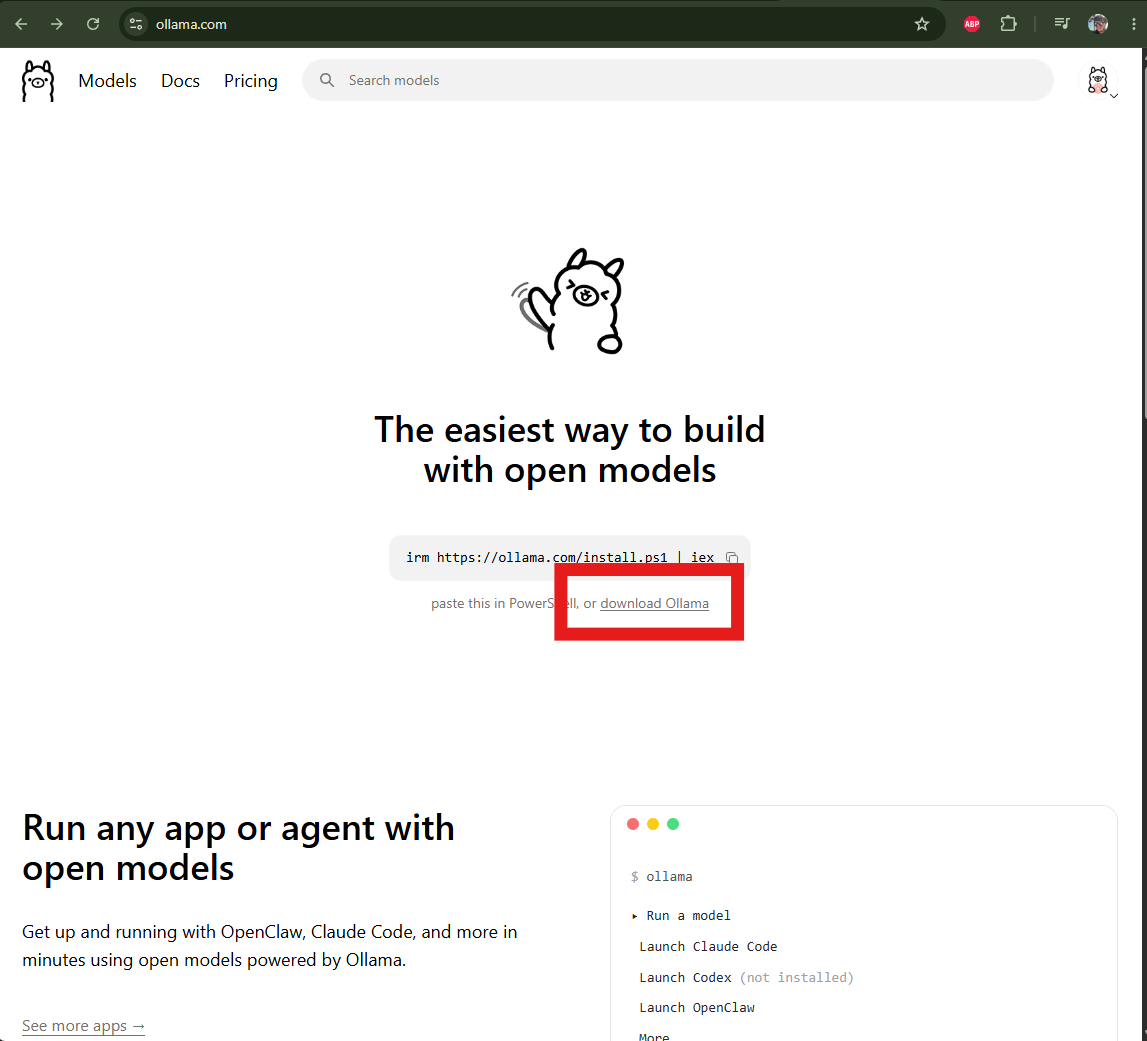
1 Go to the official Ollama website
Open your browser and visit ollama.com . Then click the Download button.
2 Download the Windows version
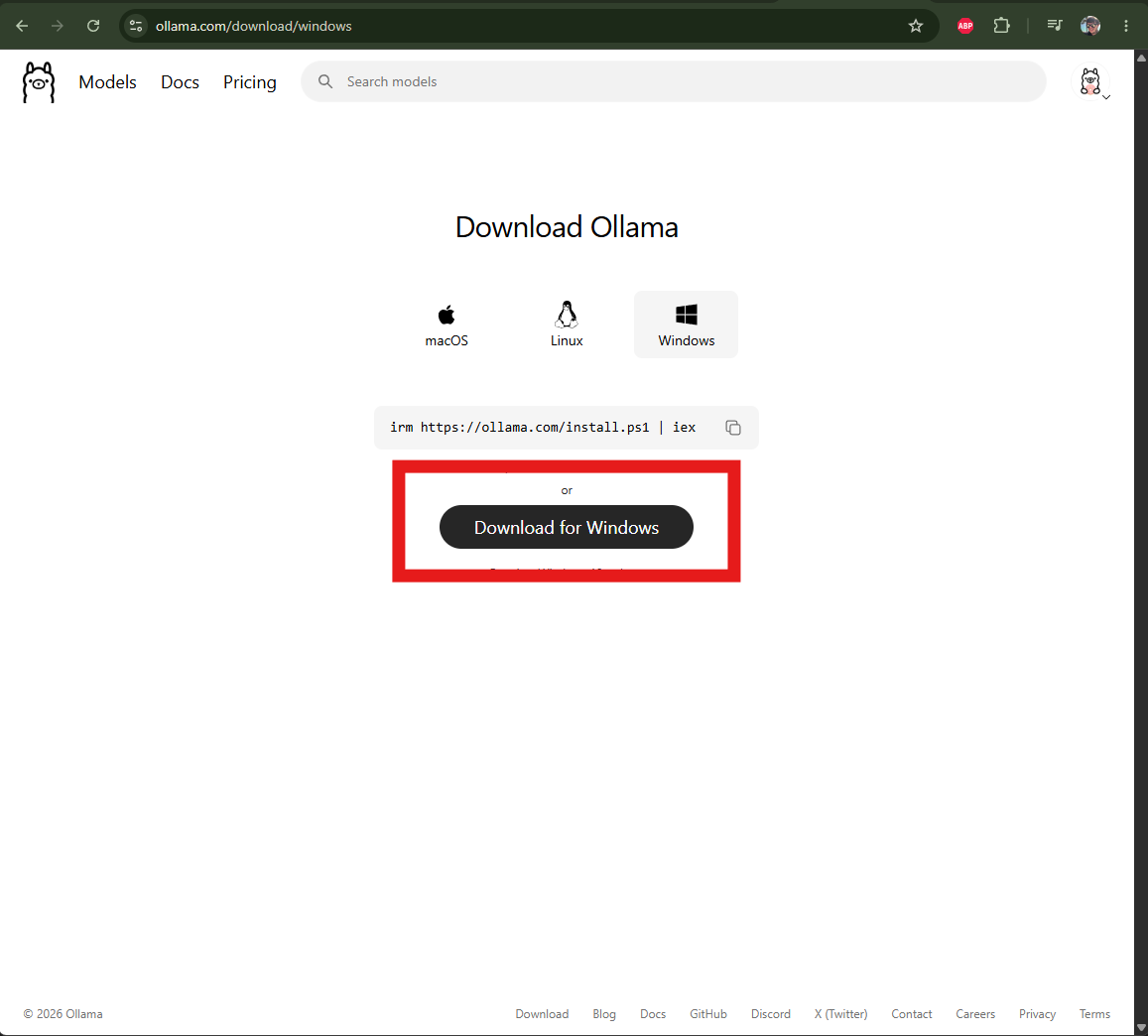
On the download page, select Windows and click the download button displayed on the dark background.
3 Open the downloaded file
Open the Windows Downloads folder and double-click
OllamaSetup.exe.

4 Start the installation
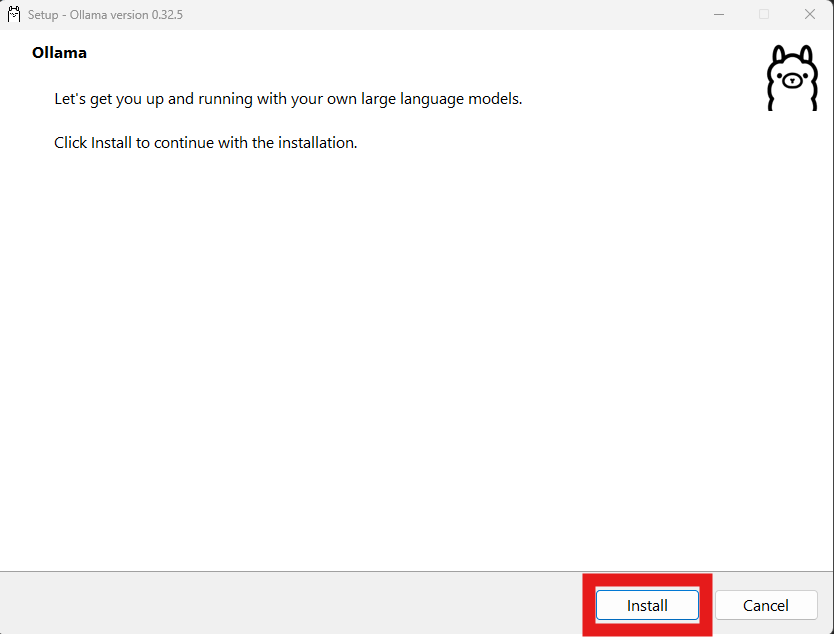
When the installer window appears, click Install. Ollama's standard installation is performed inside your Windows user account and normally does not require administrator privileges.
5 Wait for the installation to complete
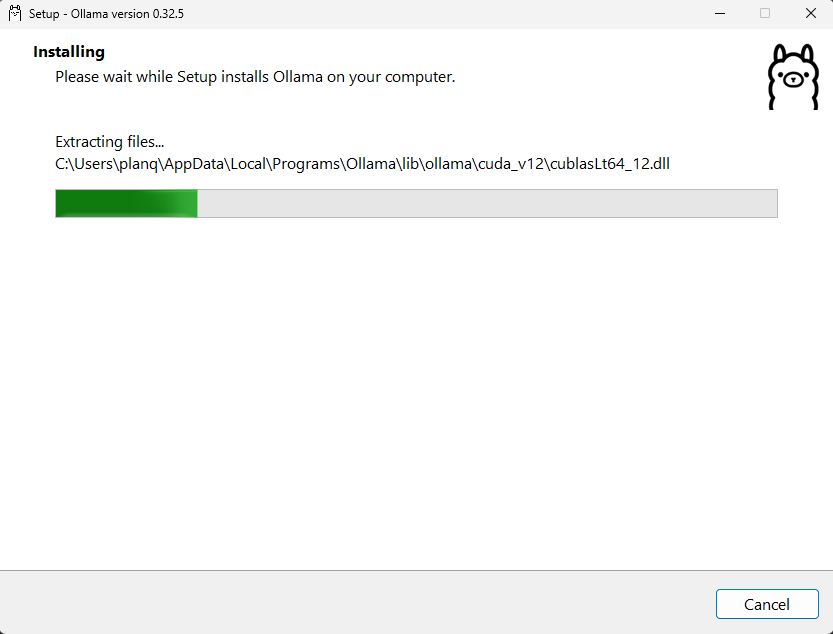
Let the installer do its work. Depending on your computer and connection, this may take a few minutes.
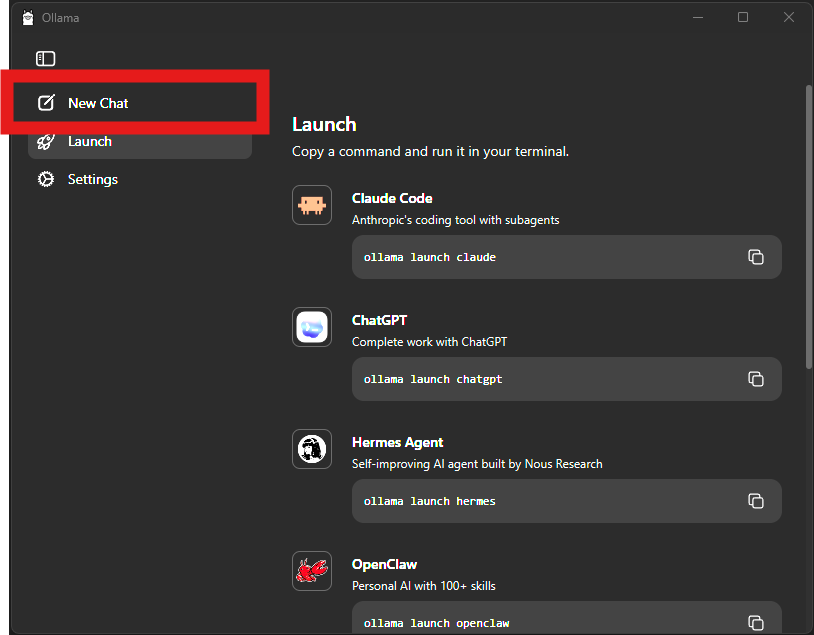
6 Create a new conversation
After installation, open Ollama from the Start menu if the application does not appear automatically. Click New Chat.
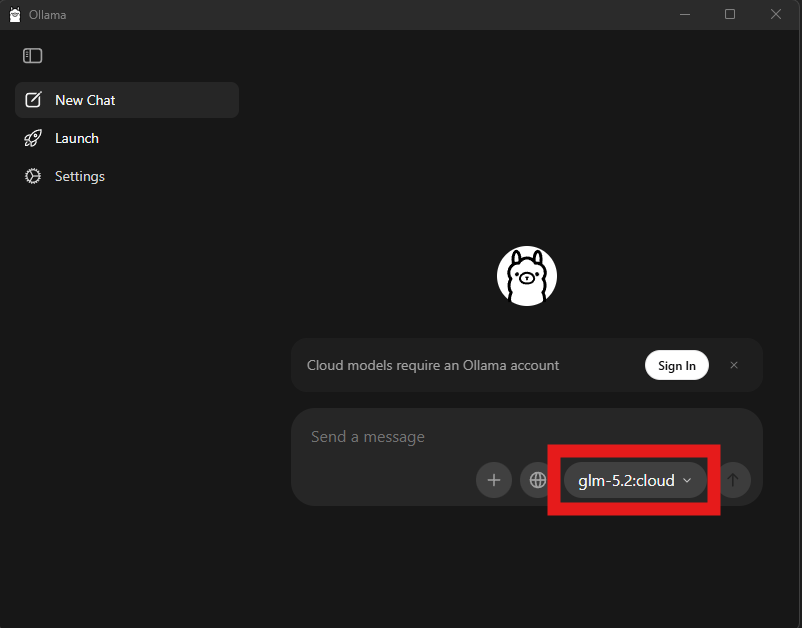
7 Open the model list
Click the model selector in the bottom-left corner of the window. This menu lets you download and test different AI models.
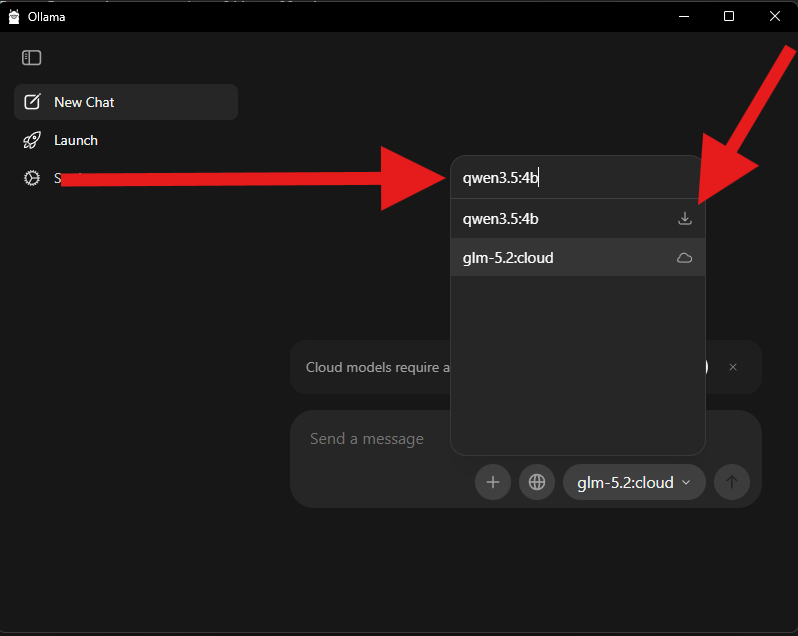
8 Search for Qwen 3.5 4B
Enter qwen3.5:4b exactly in the search field. Then click the
download icon to the right of the model.
Make sure the name does not include :cloud. The version used
here is approximately 3.4 GB and runs locally.
04 Sending your first message
9 Wait for the download to finish
The first launch takes the longest because the entire model must be downloaded. Once the file is on your computer, it will not need to be downloaded again.
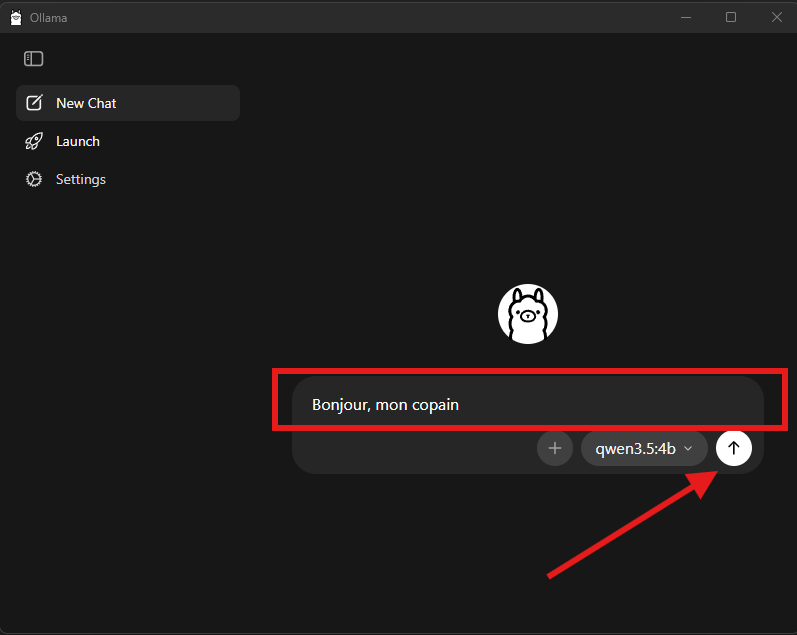
10 Write your first question
In the large conversation field, enter a message such as:
Explain in simple terms what a local AI is.
Then click the upward-pointing arrow to send your message.
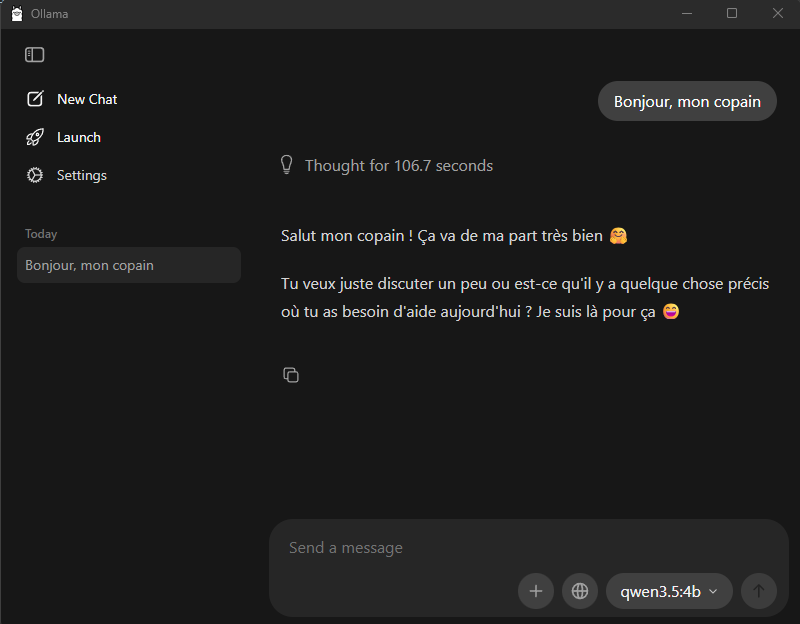
11 Wait while the answer is generated
Your computer is now calculating the answer. The first words may take a few seconds to appear, especially when the model is mainly running on the CPU.
When the answer appears, you have succeeded: an artificial intelligence model is now running directly on your computer.
05 Small models I recommend
To test another model, simply return to step 7. Search for its name, download it, and select it in your conversation.
| Model to search for | Size shown by Ollama | Suitable computer | Main strengths |
|---|---|---|---|
| qwen3.5:0.8b | About 1 GB | An older computer or a machine with limited memory | Very fast and ideal for checking that the installation works. |
| llama3.2:1b | About 1.3 GB | Entry-level computers and modest laptops | Simple rewriting, short summaries, and lightweight conversations. |
| llama3.2:3b | About 2 GB | A mainstream computer | A balanced multilingual model that works well for rewriting and summaries. |
| phi4-mini | About 2.5 GB | A reasonably recent computer with limited resources | Reasoning, logic, mathematics, and accurate instruction following. |
| ministral-3:3b | About 3 GB | A mid-range PC, ideally with 16 GB of RAM | Good multilingual support, image capabilities, and optimisation for local devices. |
| qwen3.5:4b | About 3.4 GB | A recent PC, with 16 GB of RAM recommended for greater comfort | An excellent general-purpose choice for conversation, reasoning, images, and tools. |
These sizes correspond to the quantised files shown in the Ollama library. Actual memory consumption during a conversation can be higher. If a model is too slow, simply choose a smaller one.
06 Why your computer gets noisy or responds slowly
Generating an answer is called inference. The model performs a large number of calculations to choose every word. A compatible graphics card can speed up this work, but Ollama can also use the processor.
- An answer generated by the processor will usually be slower.
- A small model responds faster than a large one.
- A long conversation uses more memory.
- Closing other applications frees up RAM.
- Connecting a laptop to power avoids battery-mode performance limits.
- A faster fan is normal when the computer is under heavy load.
The context is the amount of conversation the model can keep in memory. Ollama's application can increase this setting, but doing so greatly increases memory usage. For this first tutorial, simply keep the default value.
07 Ideas for testing your local AI
Rewrite an email
Ask it to correct mistakes, make the tone more professional, or shorten your message.
Understand a topic
Ask it to explain a concept using simple language and examples.
Summarise a text
Paste a reasonably short text and ask for the five most important points.
Think through a problem
Describe a situation and ask for several options with their advantages and disadvantages.
Here are a few simple prompts you can copy:
- “Correct this email without changing my tone: …”
- “Explain the difference between the Internet and the Web as if I were 12.”
- “Summarise this text in five points: …”
- “Give me three meal ideas using eggs, tomatoes, and rice.”
- “Act as a philosophy teacher and explain Stoicism to me.”
- “Help me prepare a list of questions for my next appointment.”
08 Important limitations
- The model may not know about recent events.
- Without Web features, it cannot browse the Internet.
- A small model may lose track of a complex request.
- It does not replace a doctor, lawyer, accountant, or qualified specialist.
- It may reproduce errors or biases found in its training data.
- Local privacy does not protect your data from someone who can access your computer.
For medical, legal, or financial decisions—or any situation that could put someone at risk—use AI only to prepare questions, then consult a qualified professional.
09 What to do when something does not work
The download is taking a very long time
Check your Internet connection and wait. Several gigabytes must be downloaded. Do not start the same download several times.
The AI responds extremely slowly
Close other applications and try llama3.2:1b or
qwen3.5:0.8b.
Ollama does not open
Restart Windows, then search for Ollama in the Start menu. Also check that the installation has completed.
Your drive is almost full
Remove unused models from the application. Ollama stores its Windows models inside your user account.
The computer becomes very hot
Check the air vents, use a hard surface, choose a smaller model, and stop the test if you notice unusual behaviour.
The model answers in another language
Start your message with: “Reply only in English and use simple sentences.”
S Official sources
- Ollama — official download
- Ollama — Windows installation and requirements
- Ollama — graphical application for Windows and macOS
- Ollama — privacy, model storage, and frequently asked questions
- Ollama — supported hardware acceleration
- Ollama — Qwen 3.5 4B
- Ollama — Llama 3.2 1B and 3B
- Ollama — Phi-4 Mini
- Ollama — Ministral 3 3B


Comments
0 commentsNo published comments yet. Be the first to respond.